
Watch Now
Announcing the launch of Org-Native Agents.
git conflicts are annoying. Your code can be working seamlessly and then when you go to merge it with another teammate’s code, it all falls apart.
Sometimes, you get a massive, multi-line error for a single edit. Sometimes, no matter what you do, you just end up bouncing your git conflicts back and forth between the same person.
It happens a lot more in production and commercial based projects than you’d expect.
Over the years, I’ve seen enough git conflicts to understand that it’s more than just the code. It’s also to do with your team’s processes, in addition to how work and the code are divided.
The bigger the team, the higher the chances of a git conflict. The same goes for your code repo.
So what can you do? First, you need to drill down to the root cause. These problems often crop up as persistent patterns. Here are some of the patterns I’ve encountered in a team space and how we fixed them.
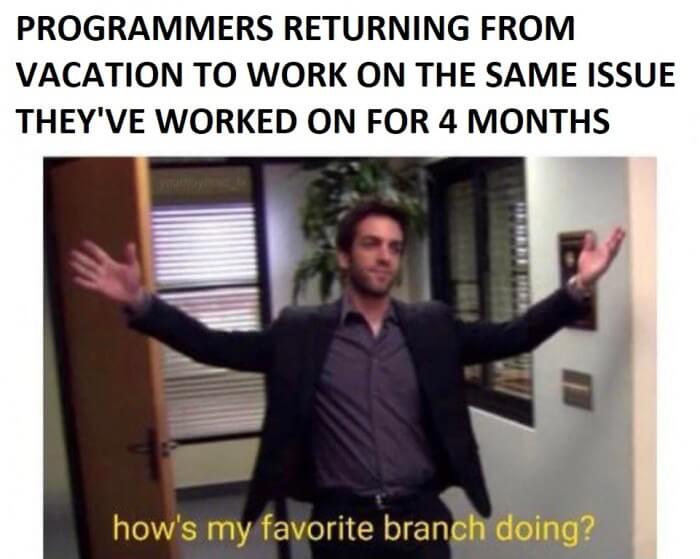
When you’re working in a team, having clear domains of work can prevent you from getting git conflicts in general.
If you’re getting the same git conflicts, especially for the same files over and over again, it usually means that your work is overlapping. As a result, any edit you make has a direct impact on the other person’s work.
So how do you prevent or stamp out this issue?
The first thing to do is to observe the scope of your work and decide how you and your teammate should abstract out each other’s portion of the work.
The point of this exercise is not for one person to take over another person’s feature, but to modularize the code in a particular way to prevent it from the constant overlap.
git conflicts can often arise due to under abstraction, with not enough or clear boundaries on the suite of functions, modules, classes, and libraries.
You’re all working on the same project, and no matter what you do, everyone on the team keeps getting git conflicts.
This may be due to how the branches are structured, and your team’s pushing workflow.
If your team is larger than the ‘two-pizza’ rule (if you need to order more than 2 pizzas your team is to big), coordination can be hard, especially if you’re all working on the same git branch. This is not recommended but for some workplaces, that’s simply how it’s done.
When these kinds of conflicts happen, the first thing you need to do as a team is de-tangle your workflow. How do you do this?
First, start by having your own personal branch to work on.
The second step is clearly separate out domains of code. This prevents your work from overlapping another person’s code, and therefore start of a series of neverending git conflicts.
The third thing you need to do is decide on a commit workflow. For example, this can be done through the ordering of features commit. Alternatively, it can be provisioned through a commit pipeline. This means that code needs to be reviewed before merging and committed to the main project branch.

Yes. This can happen and does happen quite a bit.
The problem with getting git conflicts with yourself is often caused by the repo on your machine not being up to date with the current branch. Alternatively, it can be caused by someone else working in your branch — hence the reason why your repo may be outdated.
Changes may have been committed in places you weren’t expecting, resulting in a git conflict with the files you’re working on.
Alternatively, you’re getting git conflicts with yourself maybe because you’re switching between too many branches and not merging them into a central branch.
This central branch is necessary to keep everything pipelined correctly and ensure that the repo you’re working on contains the most recent updates.

Often, the root cause of git conflicts is because your code pushes are not streamlined and single tasked.
Why?
Because git is very linear in nature.
At the end of the day, the point of git is to let you work on multiple repos at the time but ultimately bring it all together into a single and final branch — which, in many cases, is the master branch.
The master branch acts as your single source of truth and anything that deviates from this is either an update or a conflict.
Your main aim is to make it an update, rather than conflict.
So to do this, you need to sequence your commits to accommodate for changes within dependencies — but sometimes, conflicts happen regardless, especially when you’re merging back several forks from multiple developers.
Here are some recipes to help you solve merge conflicts.
This happens when changes have been made on the same set of code. This can be through deletion or modifications. To resolve this issue, you’ll need to decide on which changes to keep in the new commit.
This issue often arises when more than one developer is working on the same file — hence why it’s necessary to keep your code domains separated to prevent such issues from happening again in the future.
To resolve this kind of merge conflict, use git status to get a list of all the conflicted files.
For this, you’ll need to manually go through the file and delete what you don’t want to keep. Search for the conflict marker <<<<<<<
Changes on the base branch are marked with <<<<<<< HEAD , followed by ======= . This divider acts as the divide between your changes and the changes made by others, marked by >>>>>>> BRANCH-NAME
Decide on what the final code will look like and delete all the conflict marker: <<<<<<<, =======, >>>>>>>
Once done, add your changes to the stage using git add .
Then officially commit your code using git commit -m “your commit note here”
It happens sometimes where one person adds a file while another deletes it.
The issue pop up as an unmerged paths issue, with a list of files of who deleted the file. The issue may look something like this:
$ git status
> # On branch master
> # Your branch and ‘origin/master’ have diverged,
> # and have 1 and 2 different commits each, respectively.
> # (use “git pull” to merge the remote branch into yours)
> # You have unmerged paths.
> # (fix conflicts and run “git commit”)
> #
> # Unmerged paths:
> # (use “git add/rm …” as appropriate to mark resolution)
> #
> # deleted by us: filenamehere.js
> #
> # no changes added to commit (use “git add” and/or “git commit -a”)
To solve this issue, you need to decide if you want to keep or discard the file. If you want to permanently remove the file from the repo, use git rm filenamehere.js
If you want to keep the file, use git add filenamehere.js and this will override the delete and keep your file as part of the commit.
Why do we do this?
Because this file may be a dependency for your commit and it prevents accidental deletion by another developer.
After you’ve added or removed permanently the file or files listed in question, commit your code using git commit -m “your message here”
Sometimes your code can be in a bit of a spaghetti state and you need to reset it to a known safe point.
To do this, you can use git reset to roll back the repo you’re currently in.
First, you need to figure out which commit you want to roll back. To do this, use git log
Take note of the commit hash.
Then use git reset [yourhashcommithere]
Once you hit enter, your code will have reverted back to how it was originally before commits. Changes made will be pushed to the unstaged space.

If you want a clean reset with no changes in the repo, use git clean –all
This will give you a clean reset with no changes. If you want to commit this roll back in your branch, you can push it to the origin — but do this with caution and only if you want to make the change permanent in your repo.
git merge conflicts are never fun. They can be downright annoying — but it is often part and parcel with the job.
Regardless of where you go, you’re going to get git conflicts of some sort. Sometimes, they emerge in innocence, other times, it’s an indication of team workflows that are not optimized for modular code development.
Whatever the case, I hope this article has helped shed some light on why git merge conflicts happen and how you can potentially fix them.
Today we’re announcing Codota’s recent financing of $12M. I’d like to thank our new and existing investors e.ventures, Khosla Ventures, TPY Capital, and Hetz Ventures for this vote of confidence – we’re fortunate to have such great partners.
While this financing is obviously exciting news for us as a company, we humbly believe it is also very good news for millions of software developers and teams; this investment enables us to double down on making software development better with Artificial Intelligence. Our focus remains on smoothly integrating into the development workflow, making development more productive, less error-prone, and I even daresay more fun.
Concretely here’s what you can expect from Codota and Tabnine going forward:
And that’s only the beginning. We plan to bring AI to more aspects of the software development cycle in the future.
I’d like to thank all our Codota and Tabnine users around the globe for using and recommending our products, and for telling us what to fix and how to make it better – please keep it up!
Thanks for reading, and stay tuned 🙂
Dror Weiss,
CEO.
Back in the days when I was a junior dev I used to marvel at my supervising senior dev’s ability to create code at insanely breakneck speed.
Within moments, he’d have a working piece of code with prototyped data, almost ready and in a semi-working state. There were a lot of tabs pressed, his fingers never leaving the keyboard to touch the mouse for the duration of his demonstration.
While my coding speed is not the same pace and speed as him, my productivity, however, is not too shabby. Over the past few years, I’ve picked up a few things here and there, mostly around things to do with how to efficiently use your keyboard and code editor.
There are two ways to look at autocomplete — First, lazy coders use autocomplete. Second, you have to be crazy not to use every tool in your productivity toolkit.
Personally, I see autocomplete as a merge of these two worldviews. After all, if we didn’t want to save time or increase productivity in one way or another we wouldn’t be writing software to begin with.

There are two common types of autocomplete.
1. automated boilerplate generator that gives you the entire scaffold of classes, functions, methods, and service providers.
2. Inline suggestions as you type. These types of autocomplete solutions can leverage AI and if you use the tool for long enough, it starts to see the patterns in your code and become predictive towards what you’re planning to type next.
The more you use a particular tool, the more intuitive it becomes over time as it familiarizes itself with the libraries and frameworks you’re using.
In a way, it becomes a secondary external brain that you explicitly control. The autocorrect feature is still passive in nature, but intuitive enough to be your friendly and high efficient helper.
Not all autocomplete tools will be able to do this. Some will just go off predictive suggestions based on the encoding algorithm of the codebase.
Those that are powered by deep and machine learning allow the tool to be much more automated in the way that suggests what you’re most likely trying to achieve, making it better as a predictive coding tool than just your regular autocomplete.
The major difference between autocomplete and deep learning-based autocomplete is that the latter has the power to adapt to your personal coding style, systematic thinking and ways of handling specific tasks.
Normal autocomplete simply offers predictive code completion based on the probable outcome, rather than other metrics such as context, historical decisions, code style and framework/library that’s current in the developer’s focus.
When it comes to autocomplete, you’re more likely to keep your fingers on the keyboard and therefore maintain your flow state.
Flow state is the state of deep concentration that many of us enter when we’re intensely focused on something. It’s the mental space where we are so absorbed in our own thoughts that our productivity and output is at its highest.
However, the flow state can easily be broken. This is often through changes in the way to perform tasks, or our thoughts get interrupted by the need to switch the way we output our code.
In our case, it can be as easy as the jump between the keyboard and your mouse. Your thoughts can get interrupted, bringing you to a halt in your processes.
When it comes to autocomplete, your flow is maintained and accelerated as you are no longer limited by your typing speed or need to pause for syntax debugging.
Why?
Because autocomplete does all the initial typing required for you.
The thing with autocompleted code is that the ones with machine learning can have predictive abilities, meaning that your brain is exported to machine learning.
The more you use a particular autocomplete tool, the more it learns your patterns and requirements, making it easier and faster to work with. Not only that, but you also become familiar with what to expect.
As the AI is able to become more accurate in its predictions, it takes you less time to think about the actual act of coding and focus on the business rules, in addition to the structural and architectural parts of your code.
The more you use autocomplete, the less time you spend figuring out how to ‘spell’ your code out. Your attention is shifted towards the important task of getting the building blocks for your application right.
For a lot of us who are starting out in the world of commercial coding, autocomplete can also help you become a better developer in the long run.
There are many things that aren’t taught in online courses and college classes. Sure, you can learn how to code but the actual application of coding can be a challenging task, especially if you’re working on a pre-existing project.
The difference between school and real projects is that you’re often inheriting code from others. You’re not in an isolated sandbox where everything is neat and cohesive. There will be legacies. There will be bugs. There will be shaky logic that made sense when it was first created.
This is where autocomplete comes in.
In a way, autocompleted code is like training wheels for new developers, as much as it is a productivity tool for seasoned engineers. This is because auto-complete lets you code without actually writing the code.
Maybe just the first part or two — but the rest is written out for you and it becomes a matter of modifying what is needed. If AI and machine learning is involved, then you’re in a fantastic space to learn in context.
Because autocomplete isn’t just about filling in the blanks. Rather, it’s a productivity and quality tool packaged into one.
Auto-complete may sound like such a basic thing to have in your IDE but it can save you a ton of time in the long run.
It’s not about being lazy and not manually typing out each line of code. Besides, manual work is the sign of an inefficient developer anyway.
Automation is key for increased productivity and auto-complete falls in this category.
As a developer, autocomplete has helped me personally on two fronts — speed and delivery accuracy. I’m dealing with fewer errors, in addition to reduced questions from junior developers. Why? Because autocomplete had reduced the amount of time they need to spend on incorrect syntax and improper code creation.
Why auto-complete won’t solve all your coding problems, it can surely help reduce a good portion of them, especially when your brain is in the flow state and running at a particularly increased speed.
The last thing you want when you’re in the middle of stringing your thoughts together is to have your flow state interrupted, sending the web of business rules you’re carefully constructing inside your head crashing into a wall. Why? Because you’re stuck trying to make a syntax or reference error go away.
When things break, it’s usually enough to also break our flow.
It happens.
And for some of us, it happens more than others.
When using autocomplete as a learning tool, it can make you a better developer. It can help you grow your knowledge base and reduce the number of alerts and warnings that comes through from your code.
Autocomplete as a tool to help you code faster, increase code stability across the team, unite the codebase in format and syntax style, in addition to contributing towards reducing the number of days you might spend on a particular feature or functionality.